WhatsApp Web turns your computer’s browser into a full‑fledged messaging hub. Instead of constantly reaching for your phone while working, you can read, type, and manage chats directly from a larger screen. Everything stays in sync, protected by the same end‑to‑end encryption that made WhatsApp the world’s most trusted messenger.
Whether you want to boost productivity, type faster with a physical keyboard, or simply keep an eye on messages without switching devices, this guide covers everything you need. We’ll walk through setup, features, troubleshooting, and hidden settings—all in one place—so you become a true WhatsApp Web power user.
How to Connect Your Phone to WhatsApp Web (Step‑by‑Step)
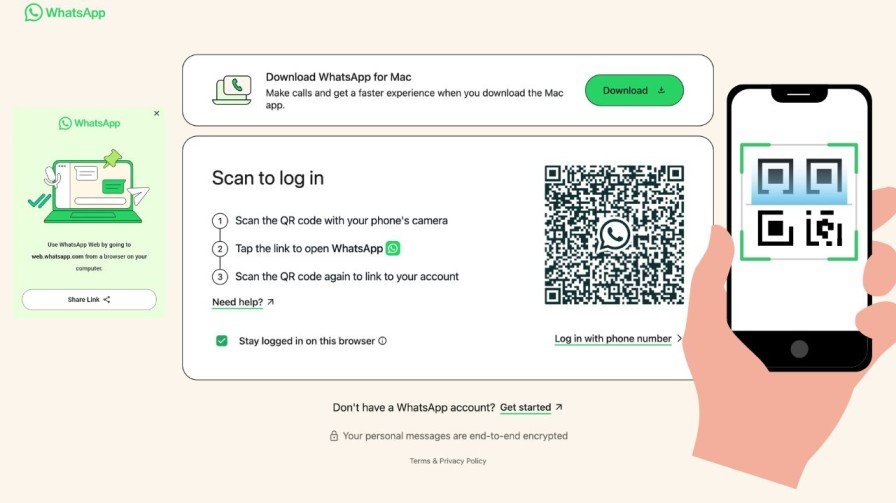
Linking your phone to WhatsApp Web takes less than a minute. Follow these steps precisely.
- Open WhatsApp Web on your computer
Visit web.whatsapp.com using any modern browser. A large QR code will appear on the screen. Keep this page open. - Launch WhatsApp on your phone
Open the WhatsApp mobile app. Make sure your phone has an active internet connection (mobile data or Wi‑Fi). - Navigate to Linked Devices
- On Android: Tap the three vertical dots (⋮) in the top‑right corner, then tap Linked devices.
- On iPhone: Tap Settings (gear icon) at the bottom‑right, then tap Linked Devices.
- Tap “Link a Device”
Your phone will ask for biometric authentication (fingerprint or face) or your passcode. After verification, the camera scanner opens. - Scan the QR code
Point your phone’s camera at the QR code displayed on your computer screen. Hold steady for a second until the scan completes and you hear a confirmation sound. - Start messaging
Once linked, your chats immediately appear on the computer. You can now send and receive messages from the browser while your phone stays in your pocket.
⚠️ Keep your phone online. WhatsApp Web relies on your phone’s connection. If your phone runs out of battery, loses internet, or you manually turn off data, the web session will pause until the phone reconnects.
How to Log Out or Remove Linked Devices
If you used WhatsApp Web on a public or shared computer, always unlink the device when you’re done. Here’s how:
- From your phone: Go to Linked Devices (same menu as above). You’ll see a list of all active sessions. Tap the device you want to remove, then select Log Out (or Remove device). Confirm to instantly cut the connection.
- From the computer: You can also log out directly from WhatsApp Web. Click the three‑dot menu (⋮) above the chat list and select Log out. This will unlink the current session only.
For complete security, regularly review your Linked Devices list and remove any sessions you no longer use.
Dark Mode on WhatsApp Web: How to Enable It
Working late or simply prefer a darker interface? WhatsApp Web supports dark mode that’s easy on the eyes.
- Click the three‑dot menu (⋮) above your chat list.
- Select Settings → Theme.
- Choose from:
- Dark: Activates the dark color scheme immediately.
- Light: Sticks with the standard white background.
- System default: Automatically matches your computer’s OS theme (if your system switches to dark mode, WhatsApp Web follows).
Your preference is saved instantly, so you can switch back and forth whenever you like.
Enabling Disappearing Messages via WhatsApp Web
You can turn on disappearing messages for any chat right from the browser—no phone needed.
Set a default timer for all new chats:
- Go to Settings → Privacy → Default message timer.
- Pick 24 hours, 7 days, or 90 days. Toggle to Off if you want messages to stay permanently.
- Optionally apply the same timer to existing chats by clicking “by selecting them” and ticking the chats you want.
Enable for a specific chat:
- Open the individual or group chat.
- Click the contact’s name at the top.
- Select Disappearing messages, then choose your preferred timer (24h, 7d, 90d, or Off).
- Confirm with the green checkmark.
Remember, only messages sent after you enable the feature will disappear. Previous messages remain visible unless manually deleted.
What Exactly Is WhatsApp Web?
WhatsApp Web is the browser‑based extension of the WhatsApp mobile app. It mirrors conversations from your phone to your desktop or laptop, using a secure connection. There’s no separate account; you simply link your phone once, and the browser becomes a live clone of your chats.
Crucially, WhatsApp Web is not a standalone application. Your phone must remain connected to the internet because the browser interface acts as a remote display. This design ensures that all messages continue to pass through your phone’s end‑to‑end encryption, keeping your privacy intact across devices.
The interface lives at web.whatsapp.com and works on Chrome, Firefox, Microsoft Edge, Opera, and Safari. Older browsers like Internet Explorer aren’t supported, so make sure you’re using an up‑to‑date version.1Key Features of WhatsApp Web You Should Know
WhatsApp Web packs nearly all the core messaging tools you rely on daily, plus a few desktop‑specific advantages:
- Unlimited Text and Media Sharing: Send messages, voice notes, photos, videos, documents, and links exactly as you do on mobile. Drag‑and‑drop files directly from your computer for faster sharing.
- Full Group Chat Support: Participate in group conversations, mute noisy threads, and manage group info without touching your phone.
- Synced Message History: Your entire chat history appears instantly because WhatsApp Web reads data directly from your phone’s local storage.
- Desktop Notifications: Enable browser notifications to see pop‑up alerts even when you’re working in another tab.
- End‑to‑End Encryption: Every text, call (via the desktop app, not Web), and media file remains encrypted. No third party, not even WhatsApp, can read your messages.
- Quick Replies and Muting: Swipe or click to reply to a specific message; mute individual chats or groups right from the browser.
- Recent Group History Sharing (New): When you add someone to a group, you can now share the last 25 to 100 messages with them. The new member gets immediate context, all while encryption remains fully intact.
- Strict Account Settings (New): Lock your account to the highest privacy level. This limits who can add you to groups and restricts media and attachments from unknown contacts, giving you greater control directly from the web.
What about voice and video calls? WhatsApp Web (the browser version) does not support voice or video calling. If you need to make desktop calls, you must download the standalone WhatsApp Desktop app for Windows or Mac. The app includes calling, screen sharing during video calls, and can work briefly even if your phone goes offline. For browser‑based messaging only, WhatsApp Web is your tool; for calls, install the desktop application.
WhatsApp Web Troubleshooting: Fix Connection and Loading Issues
If you see a yellow bar saying “Computer not connected,” or messages fail to send, work through these fixes in order.
- Refresh the page – Press F5 or click the browser’s refresh button. Often, a temporary glitch gets fixed instantly.
- Check your internet – Both your computer and phone need a stable connection. If one is offline, WhatsApp Web won’t work.
- Clear browser cache and cookies – Outdated cache can break the web app. Visit your browser’s support guide for exact steps (look for “Clear browsing data”).
- Log out and log back in – Click the three‑dot menu, choose Log out, then re‑scan the QR code.
- Restart your computer and phone – Power off both devices, wait 30 seconds, then switch them on again.
- Switch networks – Some office, school, or public Wi‑Fi networks block WhatsApp Web. If you’re on such a network, try using mobile data or a different Wi‑Fi connection. You can also ask the network administrator to whitelist
web.whatsapp.comand.whatsapp.net. - Re‑download WhatsApp Desktop (if using the app) – If the problem persists on the desktop app, uninstall and reinstall it. For WhatsApp Web, simply closing and reopening the browser usually helps.
- Update your browser – Ensure you’re running the latest version of Chrome, Firefox, Edge, Opera, or Safari.
These steps resolve the vast majority of WhatsApp Web connectivity problems.
WhatsApp Web vs. WhatsApp Desktop App: What’s the Difference?
Many users confuse WhatsApp Web (browser) with the WhatsApp Desktop application. They serve different purposes, and understanding the distinction helps you choose the right tool.
| Feature | WhatsApp Web (Browser) | WhatsApp Desktop App |
|---|---|---|
| Installation required? | No | Yes (Windows/Mac download) |
| Phone must be online? | Always required | Works briefly without phone* |
| Voice and video calls | Not supported | Supported (including screen share) |
| Keyboard shortcuts | Limited | Extensive |
| Notifications | Browser‑dependent | Native OS notifications |
| Best for | Quick access, temporary use | Daily heavy use, calling |
*The desktop app can operate independently for a short time if your phone disconnects, but the phone must still be linked initially.
If you only need to read and reply to messages while working, WhatsApp Web is perfect. If you make frequent calls or want a permanent desktop messaging setup, grab the WhatsApp Desktop app from the official website.
Frequently Asked Questions (FAQs)
Is WhatsApp Web free?
Yes, absolutely free. There are no subscription fees or hidden charges. Your mobile carrier’s data rates apply if you use mobile internet.
How long does WhatsApp Web stay logged in?
When you scan the QR code, you stay logged in until you manually log out, or until you clear your browser’s data. There’s no automatic 14‑day expiry for the browser session itself. The 14‑day limit applies only if your phone is completely offline—if the phone doesn’t connect for 14 days, the linked device will be disconnected automatically.
Can I use WhatsApp Web on multiple computers?
Yes, you can link up to four devices simultaneously (phone included). Each computer or browser opens a separate session, and all will sync your messages.
Does WhatsApp Web support voice notes?
Yes, you can play and send voice notes. Click the microphone icon in the chat bar to record audio directly from your computer’s microphone.
Can I see WhatsApp Status on the web?
At the time of writing, WhatsApp Web does not display Status updates. You can only view and interact with chats. To see Statuses, use your phone.
Is the “view once” media feature available on WhatsApp Web?
Yes. “View once” photos and videos work exactly as they do on mobile. Once opened, they disappear and cannot be viewed again. Screenshots are blocked where possible.
What is the WhatsApp Web QR code for?
The QR code securely links your phone’s WhatsApp account to the browser. It contains a unique encryption key that ensures only your device can access the mirrored messages.